HOW TO ADD A PRIVATELY VISIBLE CONTACT FOR A TRANSACTION PARTICIPANT
In this tutorial, you will learn how to add a privately visible contact for a transaction participant. This type of contact is visible only to your company.
First, choose a transaction:

On the Overview, click the more options menu  next to a participant, and choose "Add Contacts":

Next, click within the search field and choose "+Add New Contact" in the drop-down:

Next, enter the Contact's information and click "Save":

You may add more private contacts, or search for publicly visible users, for the chosen participant at this time.
When done, click "Add":

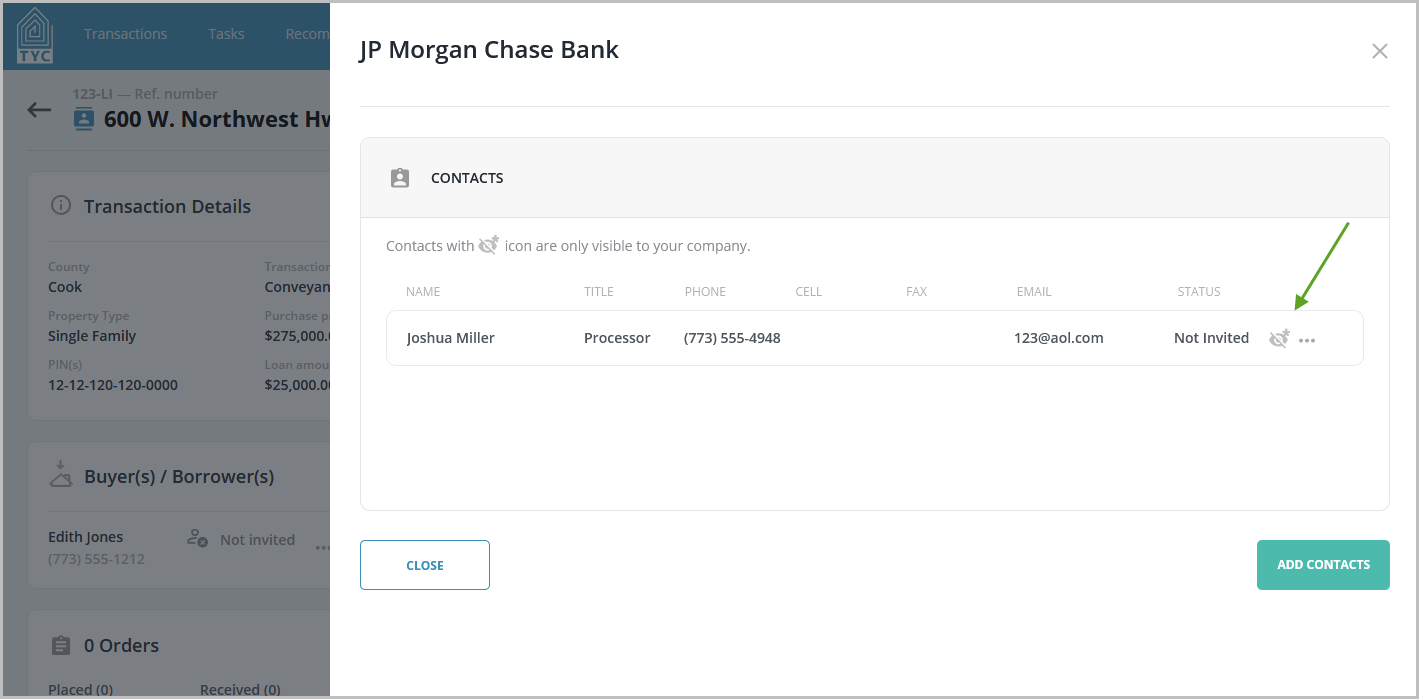
The private contact will now be visible to only your company, and will be indicated by a Private Icon  when you choose to view the contacts for the participant. They will not receive any e-mail notice of being added as a private contact.
0 Comments