How to Generate a Closing Confirmation Report for an Accepted Closing
In this tutorial you will learn how to generate a closing confirmation PDF for an accepted Closing Event in a transaction.
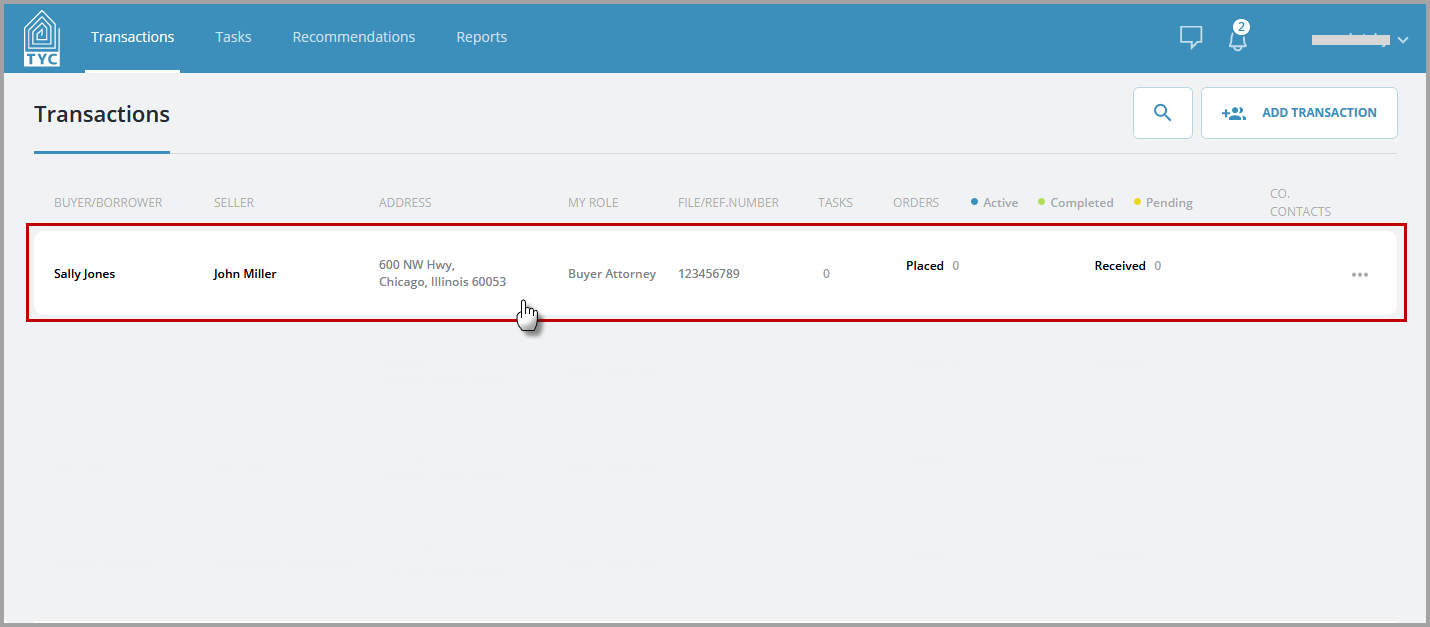
First, click on a transaction:
Next, click on the blue printer icon on the Closing Information tile (it will only be clickable if the closing status is Accepted):

Then, depending on your browser settings, your document will open in a new window or will download to your computer automatically. Please ensure your pop-up blocker is disabled.
Alternatively, you can click the "Events" tab:
And you may click the printer icon to generate a Closing Confirmation Report:
Depending on your browser settings your document will open in a new window or will download to your computer automatically. Please ensure your pop-up blocker is disabled.
0 Comments