HOW TO GENERATE A TASKS REPORT FOR A COMPANY TASK
In this tutorial, you will learn how to generate a Tasks Report in TYC.
(You will need to create a company task as a company administrator before being able to generate a Tasks Report. See this article for Creating a Company Task.)
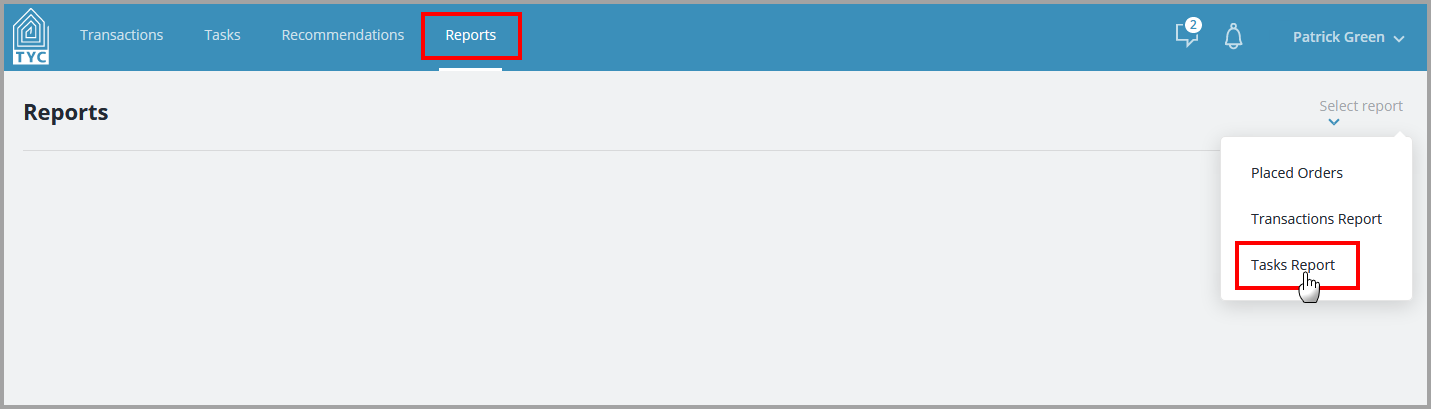
Once you are logged in to TYC, click the
Reports section. Choose the Tasks Report from the drop-down:
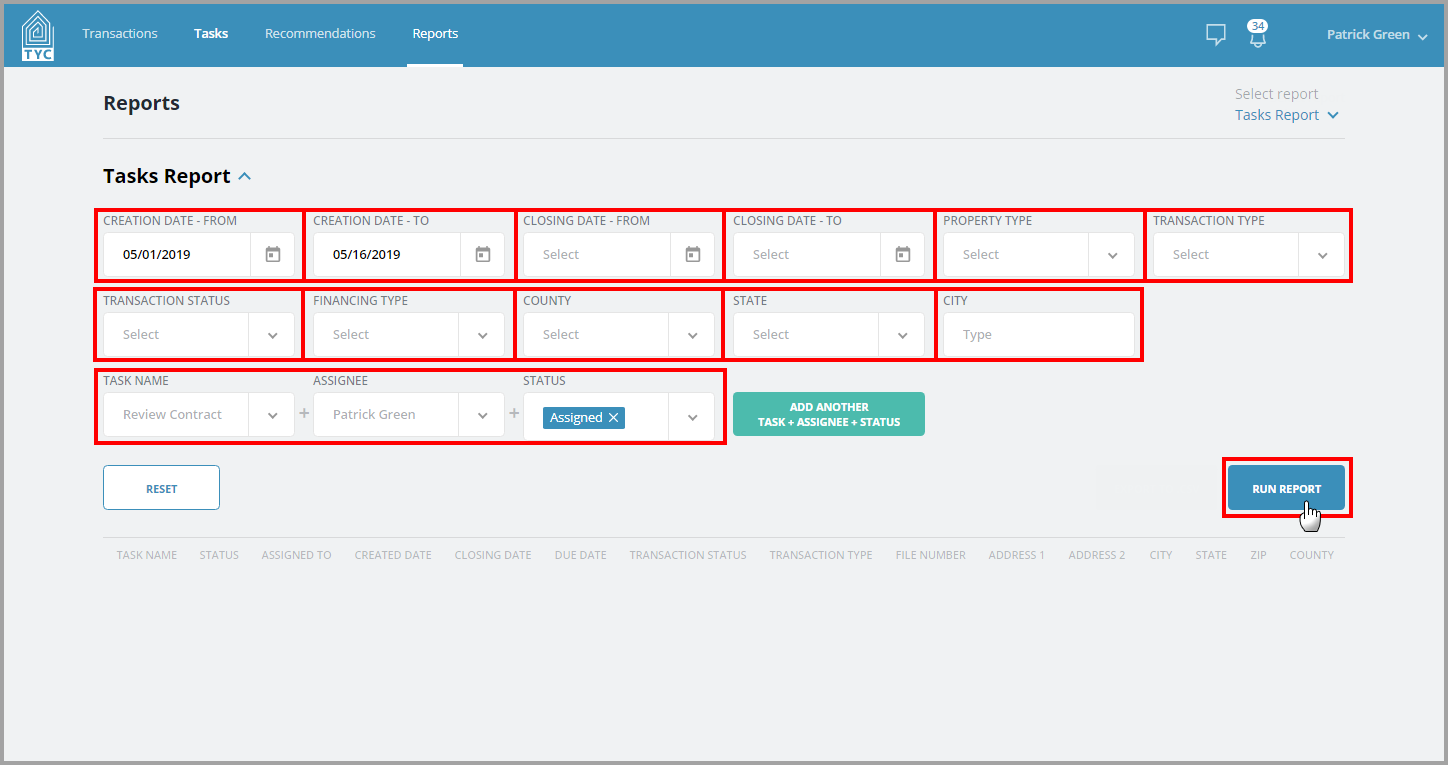
Fill in your desired criteria and click "Run Report". Note that choosing from a company task is required:
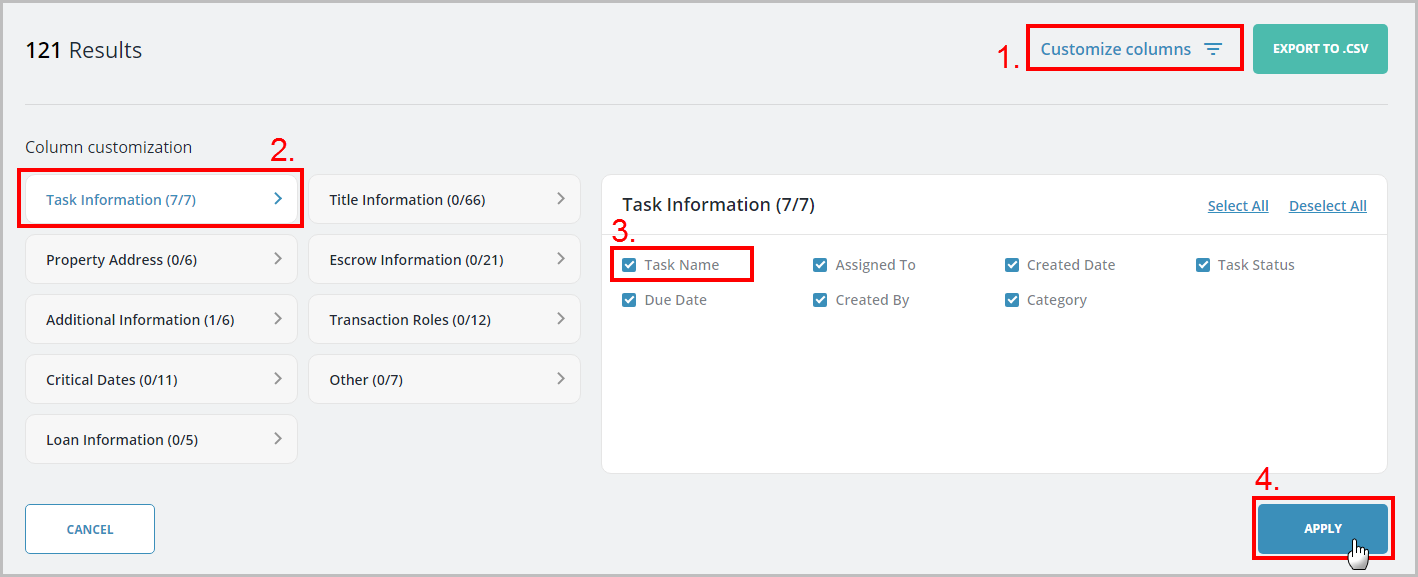
Click "Customize Columns" if you would like to choose which data points are included in your results. After you make your check-box selections in each of the sections, click Apply:
Lastly, you may view your selections in the viewer by using the horizontal scroll bar, or you may Export your results to .CSV by clicking the appropriate button:
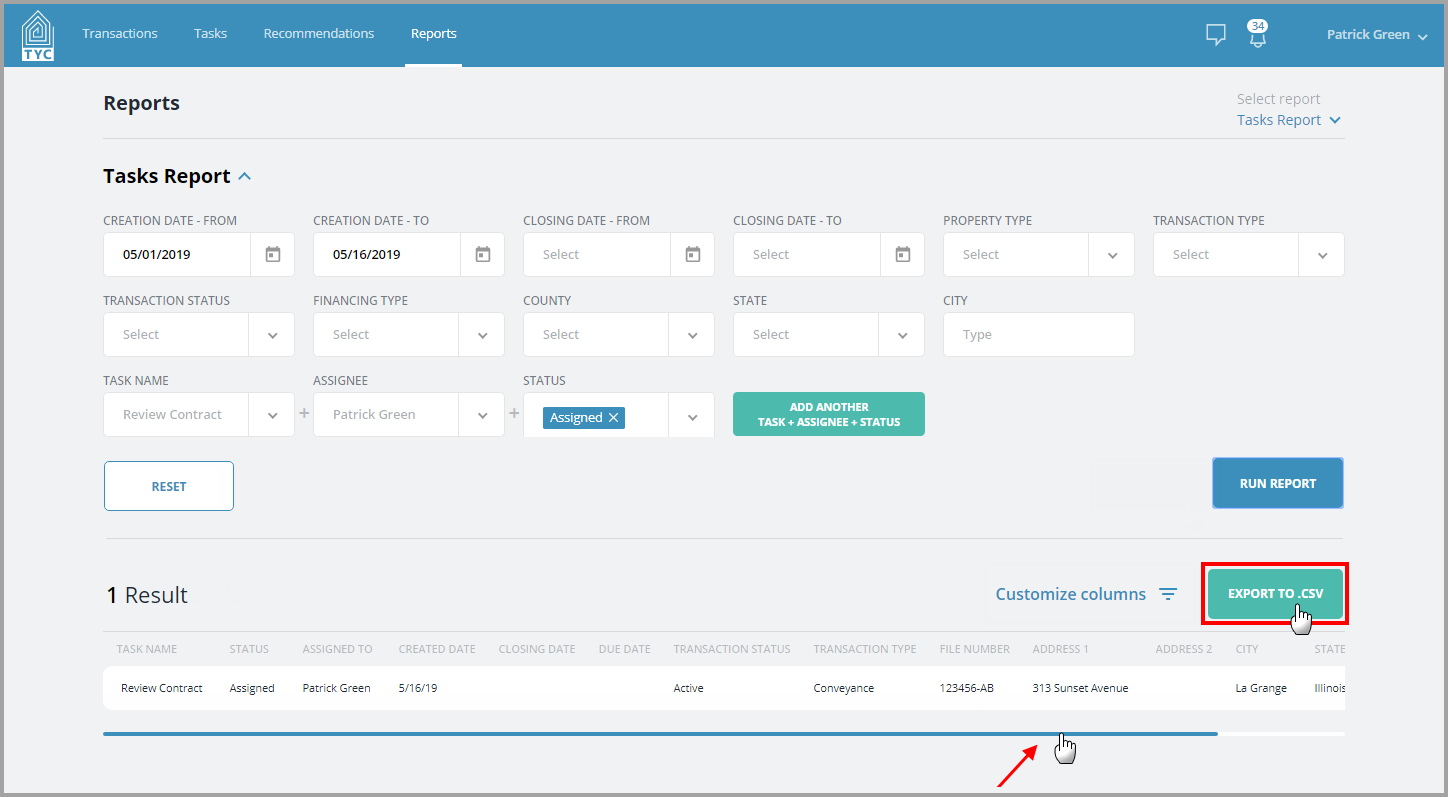
If exported to .CSV, your file will be downloaded to your computer based on your browser's preferences.
You can click "Reset" to run another report.
0 Comments