How to Edit a Custom Role's Visiblity Settings
After you have added a custom role into a transaction, you can customize their visibility restrictions within a transaction. This means you will be able to specify which participants can see them and who they can view (as well as share items with) within the transaction.
First, select the transaction:
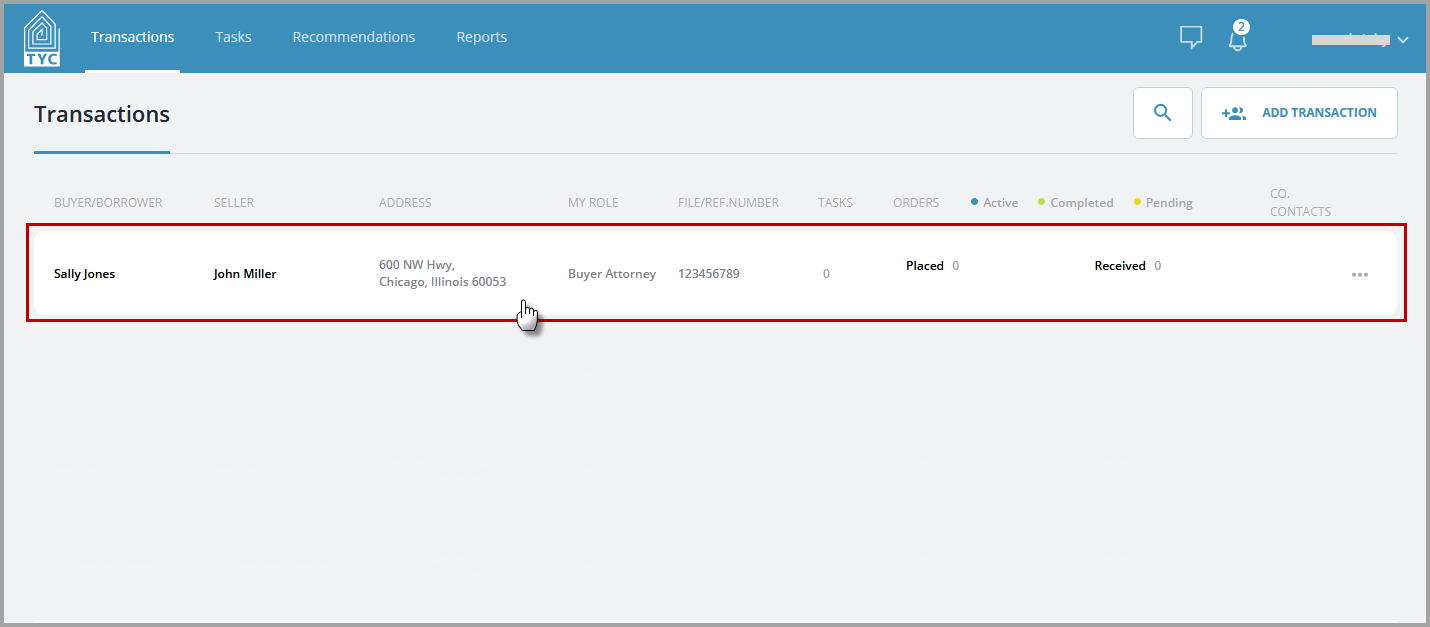
Click "See All/Add":

To change a custom role's visibility, click the three dot menu  next to their name and choose "Share custom role":
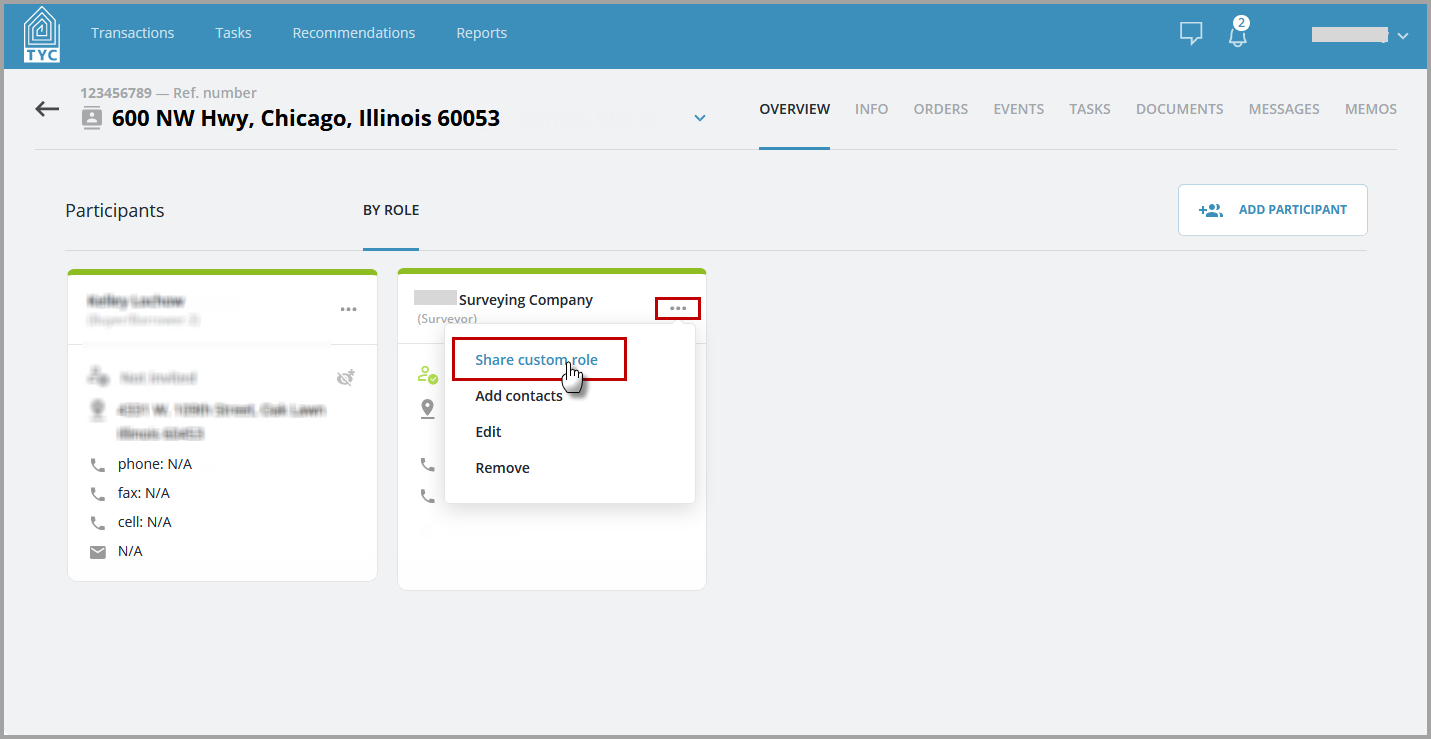
Then you will be able to specify who can see them and who they can view within the transaction. Click the plus button next to the participant's name whom you wish for the custom role to be able to see and share items with. They will then be added to the shared visibility list under "Role visible to":
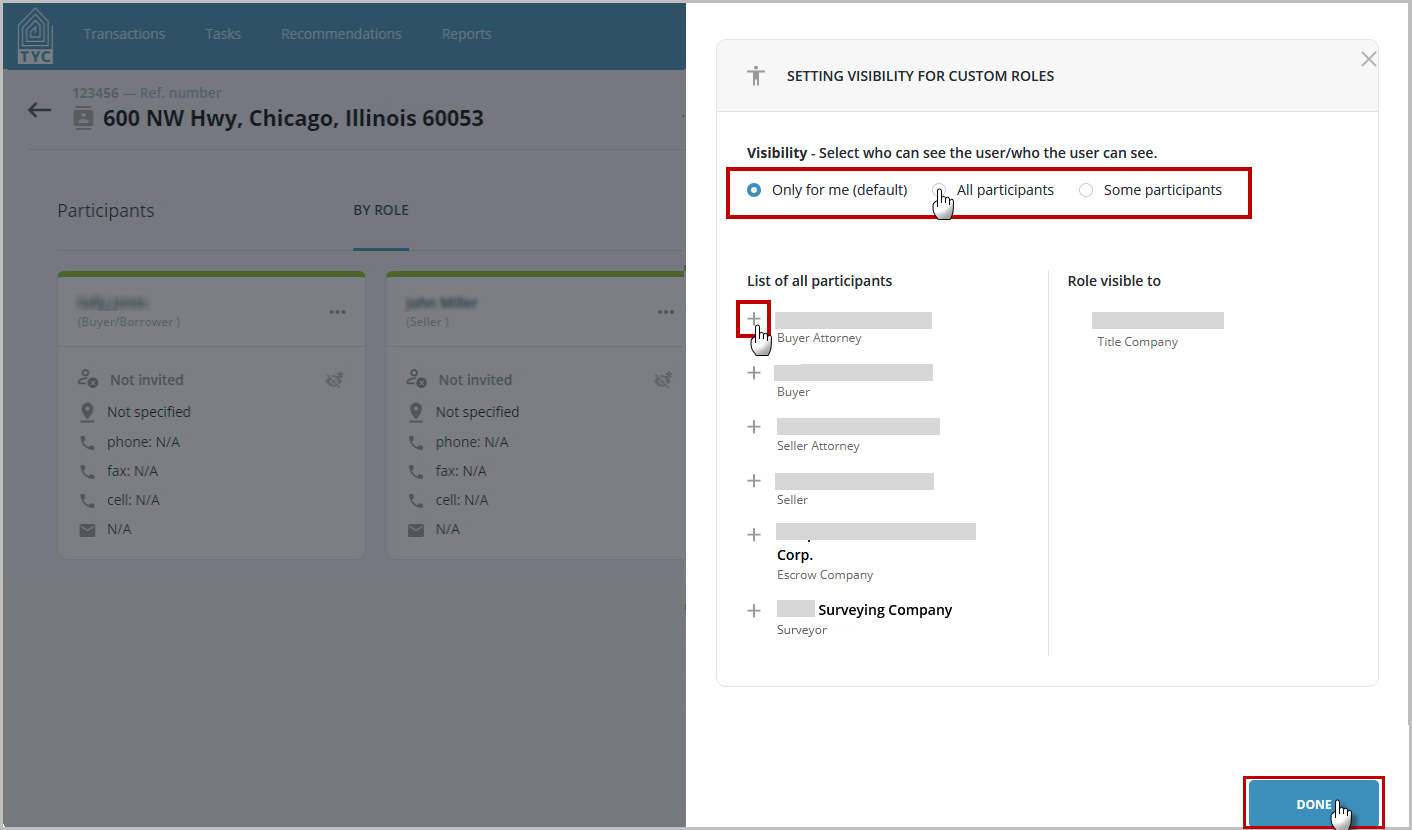
Click "Done", and the visibility settings for the custom role will be updated. Now, any users you added to the list will be able to interact with the custom role via TYC.
0 Comments