HOW TO PREPARE-EDIT A TEMPLATE
In this tutorial, you will learn how to navigate to Prepare-Edit for a Template (formerly, Document Assembly). After, you can decide to Download or Save to Transaction.
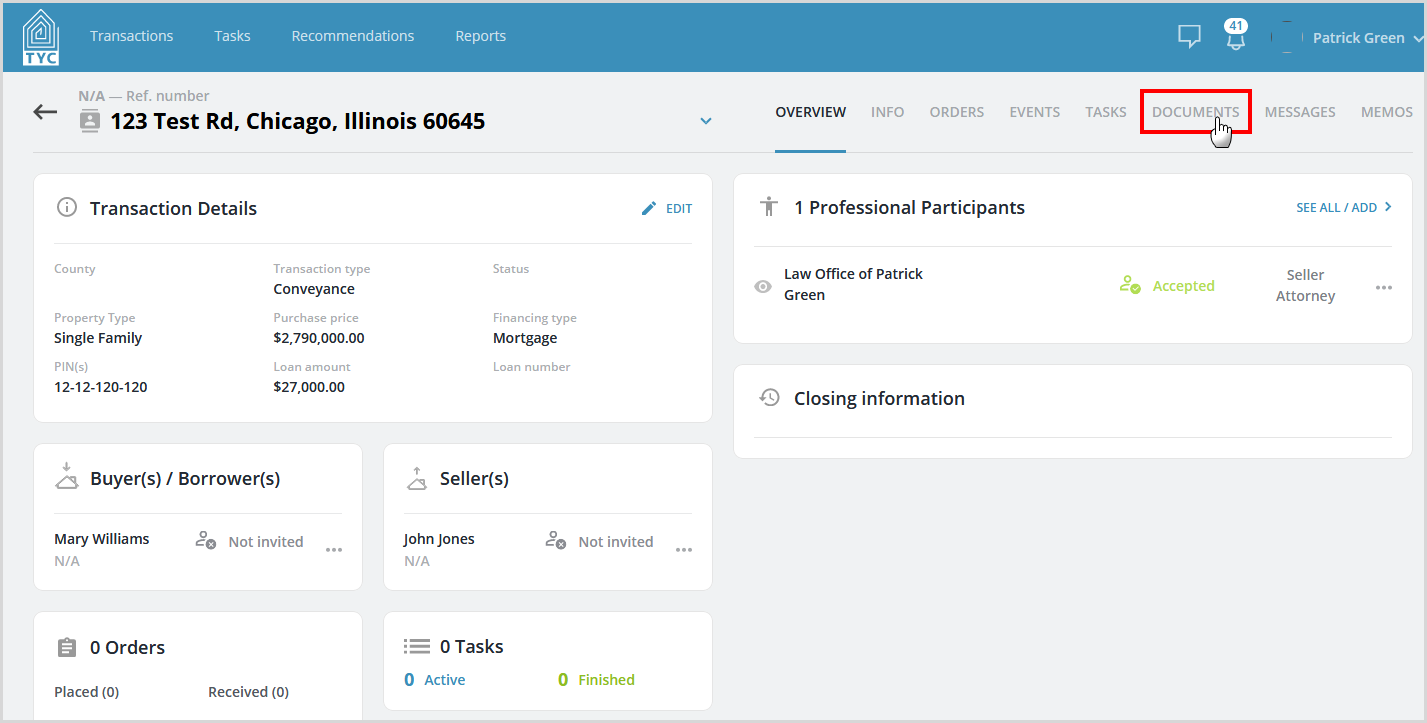
Within a transaction, navigate to the Documents tab:
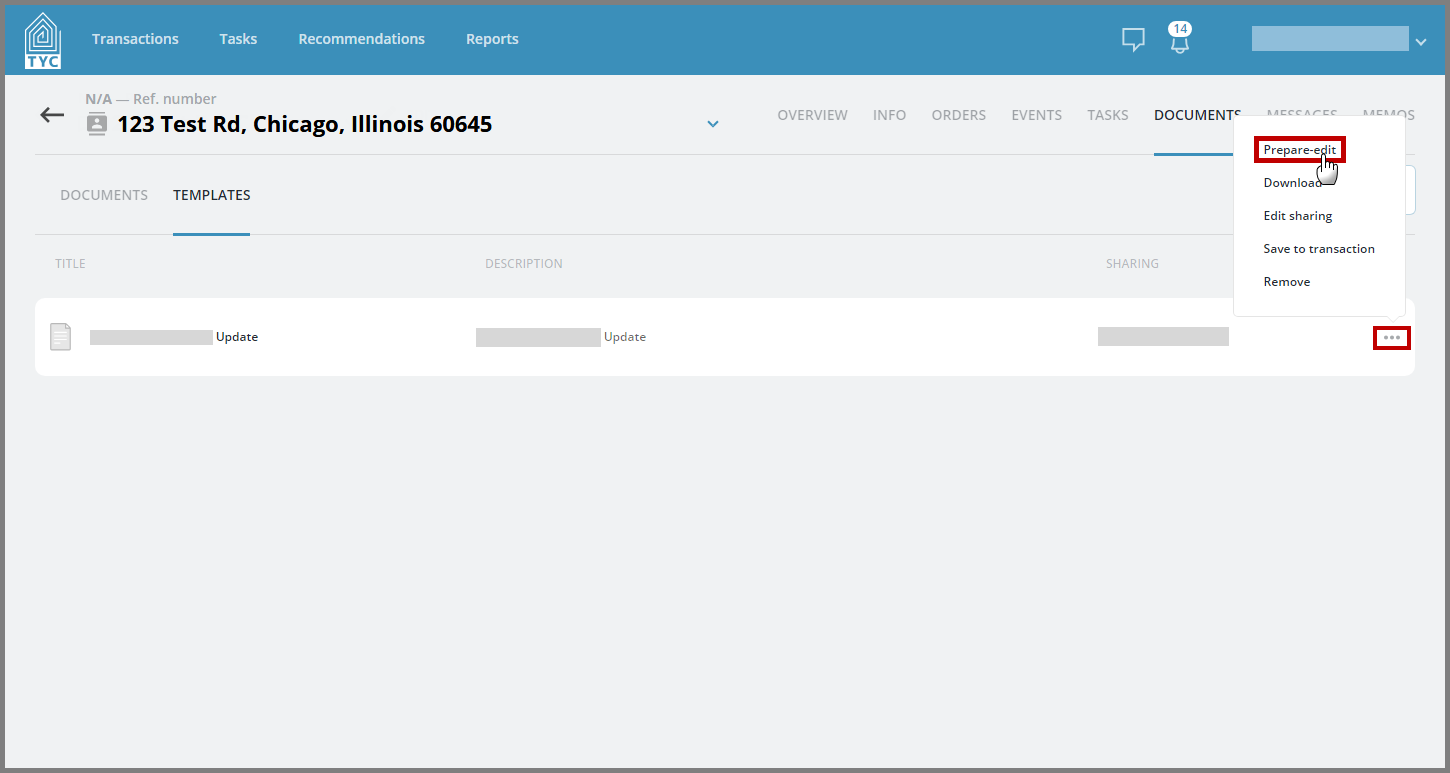
Toggle to Templates:

Within a template, click on the More Options button  and select Prepare-edit:
Then, the appropriate interview will load and you can fill in your answers. Click "Finish" when done:

You will then be presented with an option to "Download" or "Save to Transaction". If you click Download, the file will download locally to your computer. If you click Save to Transaction, it will be saved to the Documents section for you to view:

Once you make your selection you will be prompted on the format of the document (Native or PDF). Next, you can change the document name if desired, or select from your company's Common Document Names (if any exist), and then click "OK":

You can now open the document from your computer, or, navigate to the Documents section and view and share your newly generated document, depending on your choice.
0 Comments