NAVIGATING GLOBAL TASKS
In this tutorial, you will learn how to navigate the Global Tasks section.
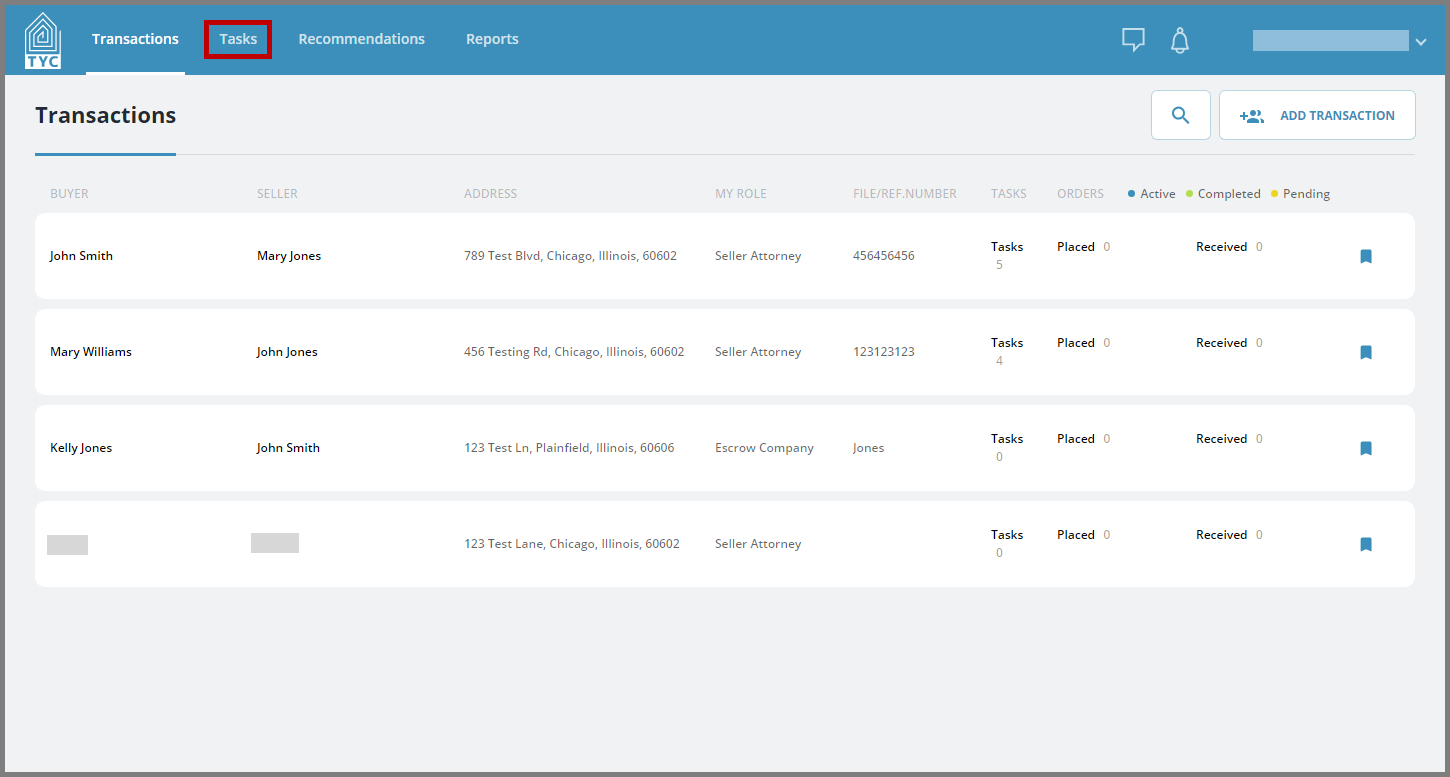
From the homepage, click the Global Tasks section:
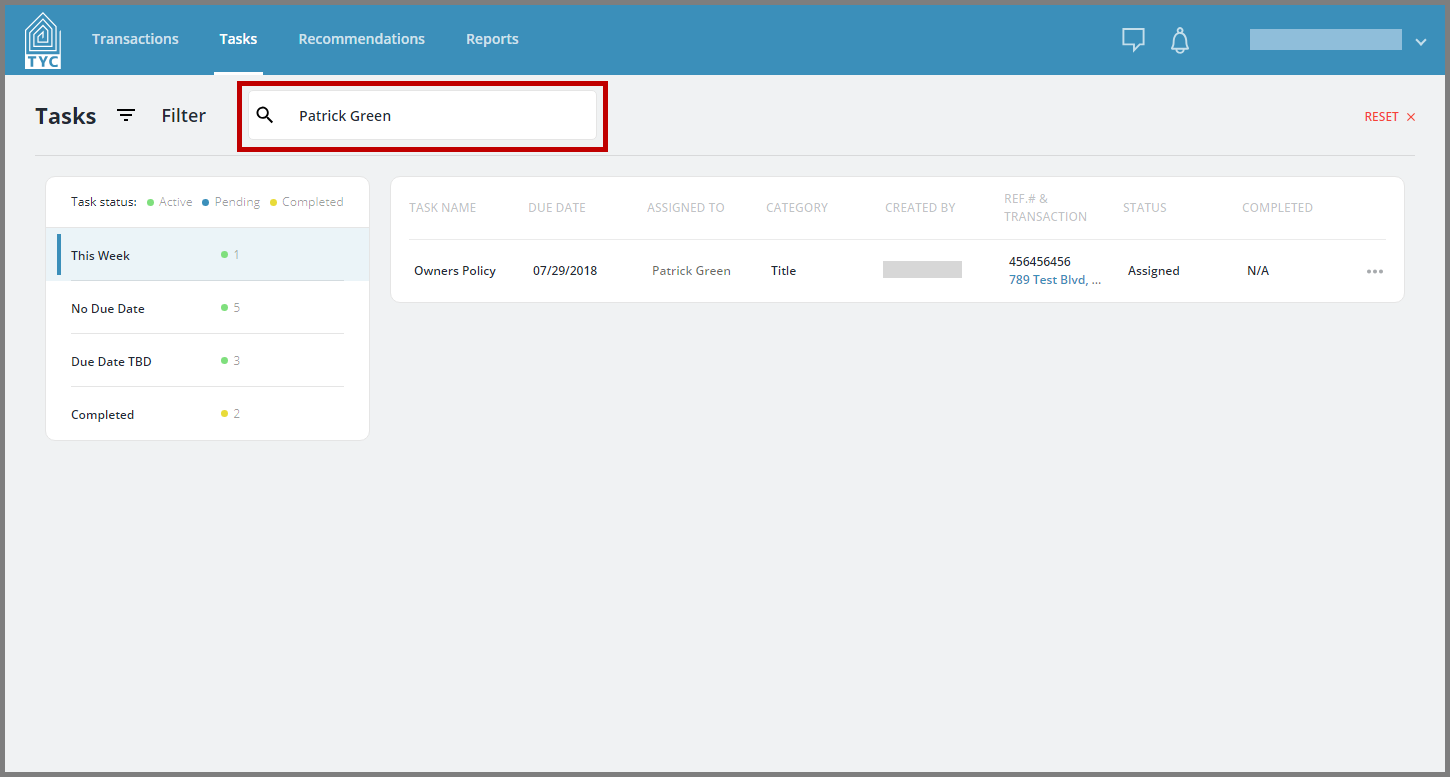
You can filter the tasks that are visible by searching for an assignee in the search bar. By default, the signed-in user's name will populate the search bar in which you can see that user's tasks:
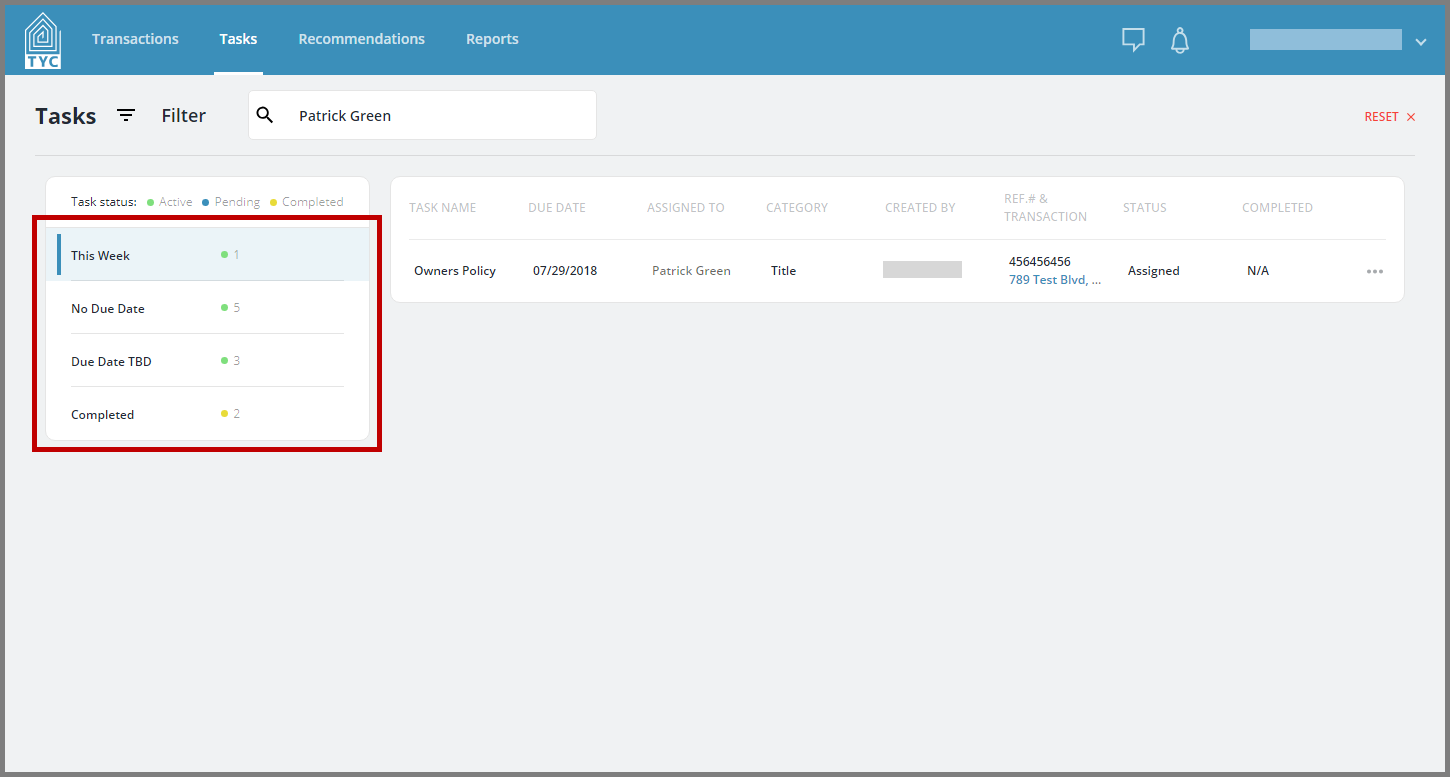
You can further filter by selecting a grouping on the left hand side:
You may select all or multiple tasks by clicking the checkbox in the designated area below to perform an operation to multiple tasks at once, such as: Change Assignee, Mark as Finished, Mark as Active, Change Category, and Remove:

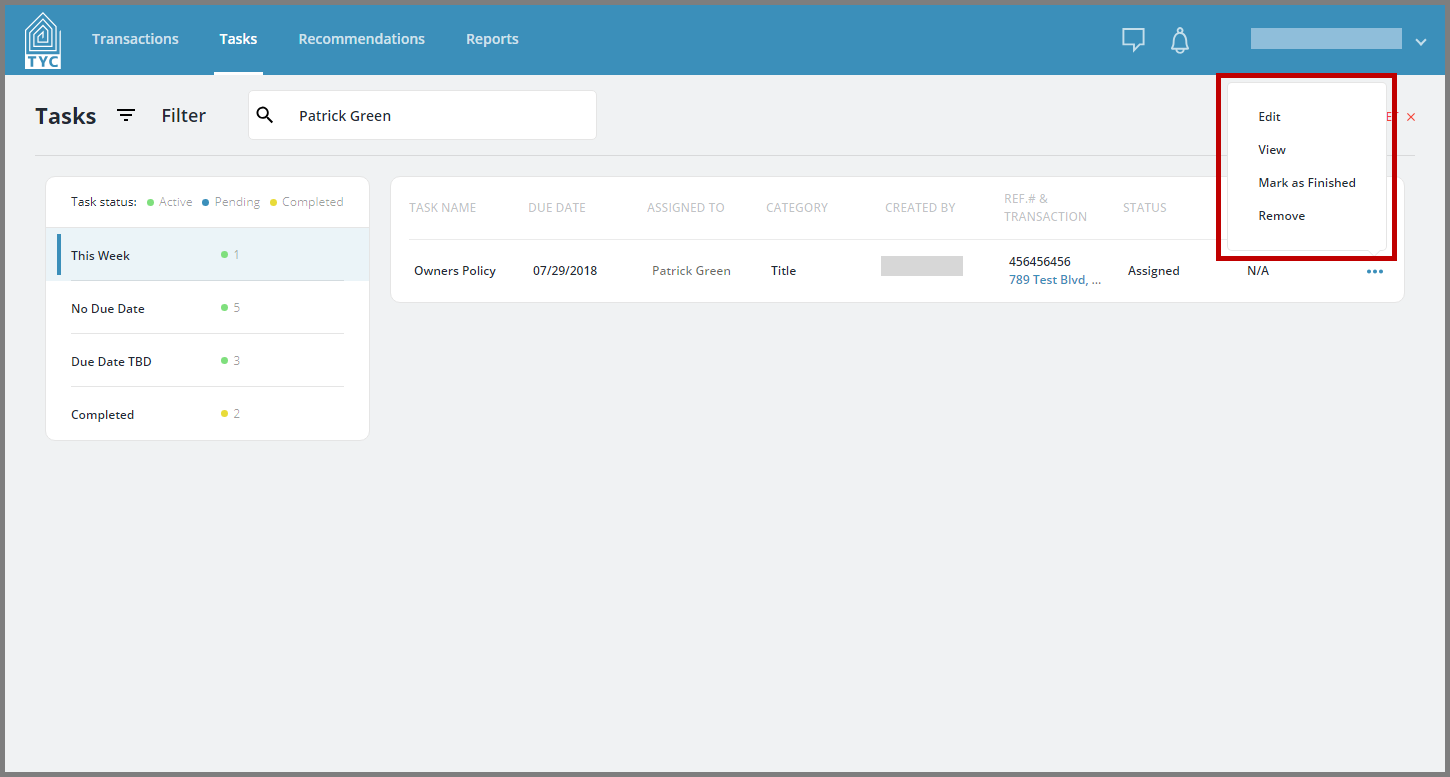
The more options menu  on the right allows you to perform the appropriate actions for a single task:
You will receive an error message in the specific cases below if you are performing disallowed actions from the Task tool bar:
Change Assignee:
- If the task is external and/or declined, and you are trying to Change Assignee, you will receive this error message:
"Assignee can not be changed for External and Declined tasks."
Mark as Finished:
- If the task is external and/or unassigned, and you are trying to Mark as Finished, you will receive this error message:
Error Message: “You can only mark internal and assigned tasks as finished"
Mark as Active:
- If the task is external and/or not completed, and you are trying to Mark as Active, you will receive this error message:
"You can only mark internal and completed tasks as active."
Change Category:
- If the task is declined, you will receive this error message:
"Category can not be changed for declined tasks."
- If the task is external and you are not the assignee, and you are trying to change the category, you will receive this error message:
"Category can not be changed for external completed and assigned tasks, if you’re not an assignee."
Remove:
- If the task is external and user is not assignee, and you are trying to remove it, you will receive this error message:
"You can not remove external completed, declined and assigned tasks, if you’re not an assignee."
0 Comments