CUSTOMIZING YOUR ALERTS
In this tutorial, you will learn how to customize which alerts you want to receive, as well as the method in which you'd like to receive them.
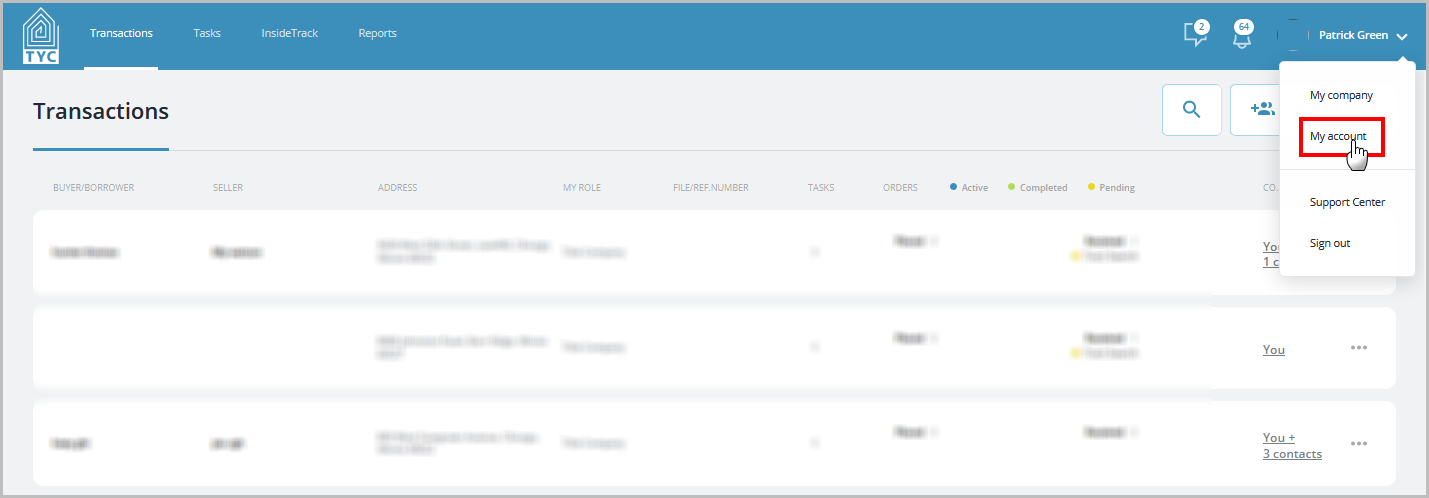
On the main page, click your name in the upper right corner to bring down the drop-down menu. Then, select "My account":
On your profile page, click "Edit":

When customizing your alerts, you can select additional methods in which to receive the alerts by selecting the box next to "Notifications via text messages" if you wish to receive alerts via SMS text, or "Notifications via e-mail" if you wish to receive alerts via e-mail. Note: if you are opting in to alerts but choose to not receive them via and or text message alerts, you will still receive them in the Bell icon in TYC as a system alert (e.g.  ).
).

Alerts are grouped by category and you may customize them based on the ones you want to receive. You can choose whether you would like to receive an alert for either: All Deals, "My transactions only" (that which you are a Contact for), or not to receive that alert at all. To do this, simply select the appropriate radio button next to your desired option. When you have finished, select the "Save" button at the bottom of the slider.
0 Comments