EDITING/CANCELING A CLOSING
In this tutorial, you will learn how to edit or cancel a closing event you have created. To learn how to schedule a Closing, see How to Schedule a Closing.
On the transaction page, select the transaction you would like edit or cancel the closing in:

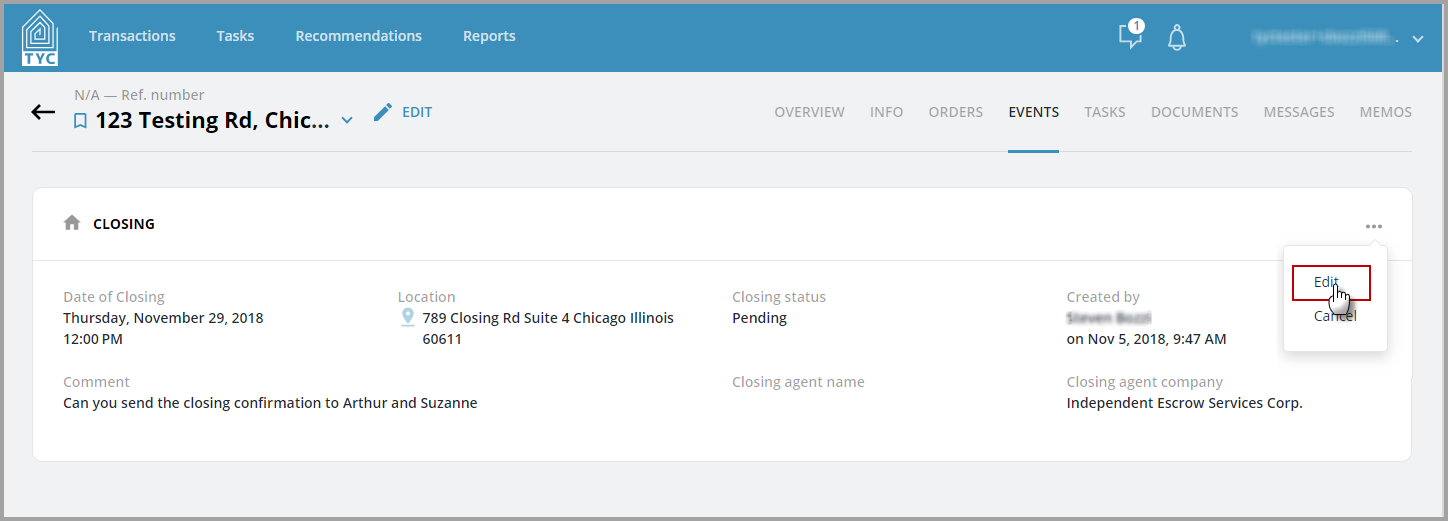
Within the transaction, navigate to the Events tab:

Click on the more options menu  and select "Edit":
Inside of the Edit Closing menu, you can make any changes to the time, date, closing location, or comment, and then click "Save". Alternatively, you can select "Cancel Closing" at the bottom left to cancel the closing if you wish:

When you make any changes, a notification will be sent to the Escrow Company and the Closing Event will be set to Pending status for approval.
0 Comments